

No matter how hard Azure Data Studio (ADS) is pushed by Microsoft, most DBAs still use SQL Server Management Studio (SSMS). Here is my initial setup, plus the tips and tricks I lean on daily.
I'm also a loyal user of SQL Prompt by Redgate, so while you might see some of its effects in the following screenshots, I'll probably cover it in a separate post. With that out of the way, let's get to it.
Layout
I'd like to pin my Object Explorer and Registered Servers to the right and set them to auto-hide for these reasons:
- I spend most of my time in the Query window and I like that it's left-aligned
- I have to resize the Object Explorer based on the level of nesting or length of the object name, SQL jobs, etc
- The Solution Explorer in Visual Studio is also on the right side
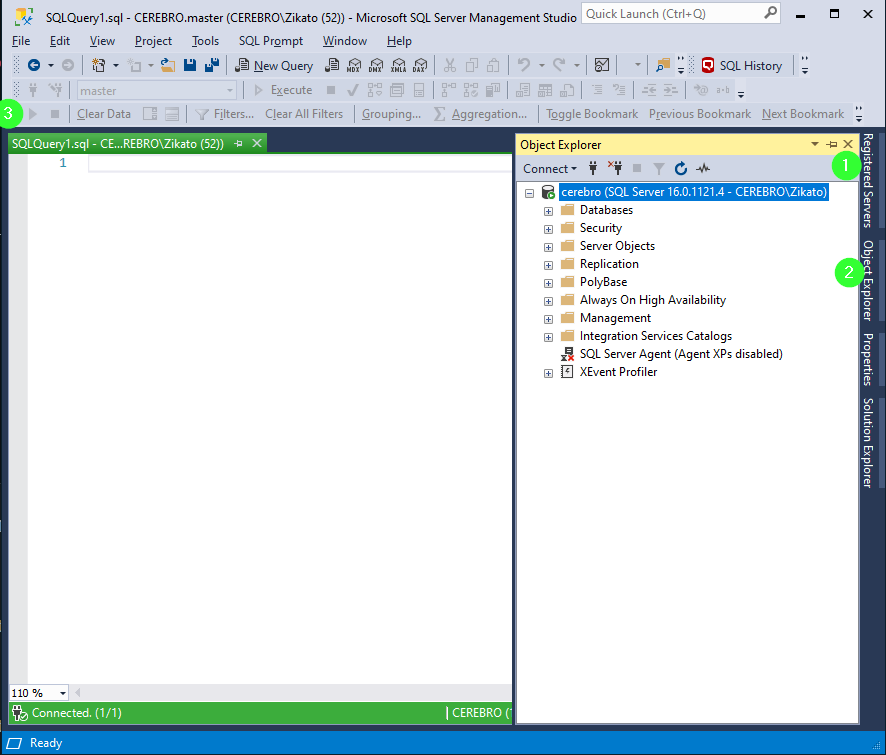
- 1 Same thing for the Registered Servers
- 2 Object Explorer is usually below Registered Server but I have no hard preference
- 3 You might have also noticed that I have the Extended Events toolbox permanently pinned. It opens automatically when using Extended Events views, but I don't like the layout change if I'm switching between the windows
Tools\Options
Just keep in mind that after you change an option (whether you enable or disable it), it only applies to new tabs.
Environment
Keyboard
I have some custom shortcuts, but I will cover them in a separate section near the end.
Query Shortcuts
I personally only use the default Alt+F1 to run sp_help. I know other people are using all the available slots (and more power to them), but I like the more versatile SQL Prompt snippets.
Startup
Switch to Open empty environment. It makes starting a new instance a bit faster.
Tabs and Windows
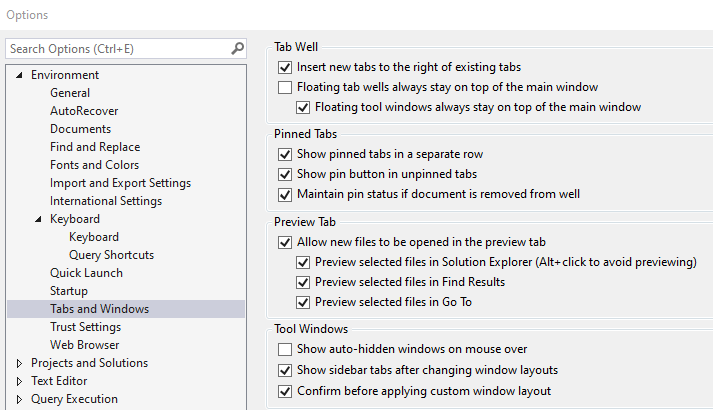
Insert new tabs to the right of existing tabs - Helps you preserve the ordering of your tabs
Show pinned tabs in a separate row - while the normal tab row hides tabs if you have more tabs than the window width, the pinned tabs wrap around.
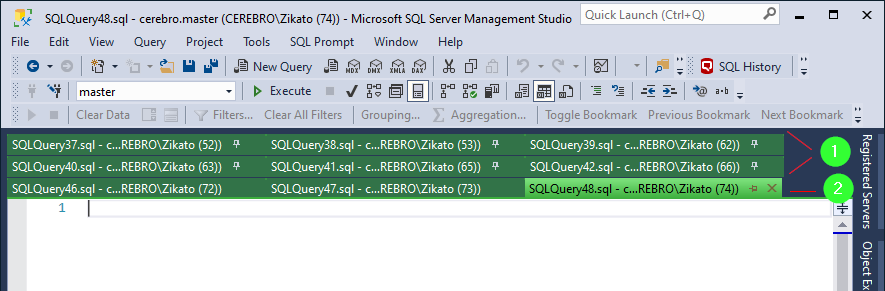
- 1 The first two rows from the top are the pinned tabs - they wrap around
- 2 The last row is the normal tab. You can see SQLQuery43 - 46 are missing because they are scrolled out of view.
Projects and Solutions
I don't use them. I've tried before but didn't see the benefit.
Text Editor
Transact-SQL
General
Word wrap - enable along with Show visual glyphs for word wrap
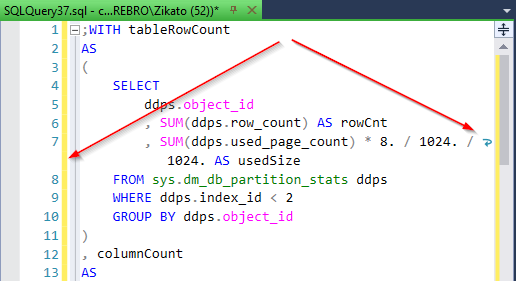
You can see the glyph at the end of a line, also notice that the next "line" doesn't have a line number. I usually have two windows side-by-side so this helps for longer lines of code.
Line numbers - enable. To be honest, I'm not sure why this is not enabled by default
Scroll Bars
I always enable Map mode; the only decision is how wide to set it. It depends on the amount of real estate you're willing to give up.
I usually set it to wide anyway and there is still plenty of space on my 32" monitor even when having two vertical tab groups.
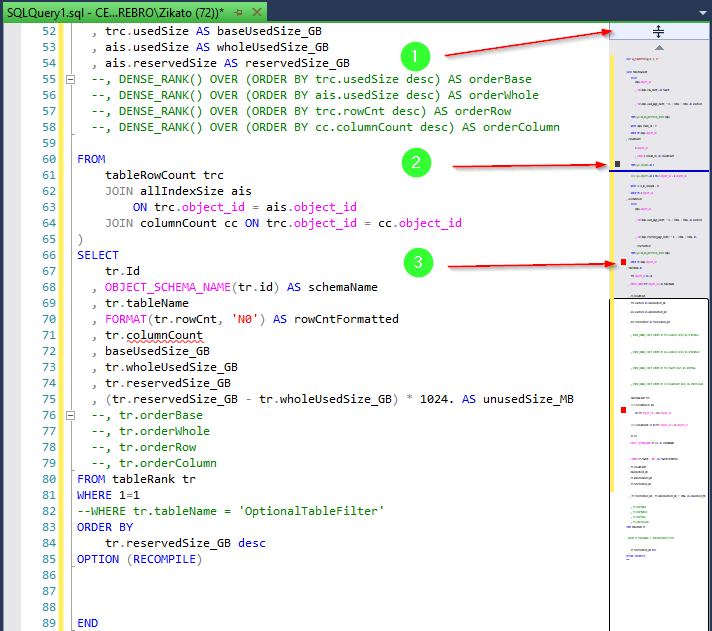
- 1
You'll get a vertical split screen button. Just drag and drop
- This is useful if you need to cross-check code that is apart (e.g. temp table definition and insert)
- If you want to cancel the split, just double-click the splitting line. The split screen part that had focus will be kept.
- 2 Bookmarks are shown as black rectangles (if you're using them)
- 3 Errors show up as red rectangles
- If you're not happy with the map mode, there is a shortcut to the settings, simply right-click the scrollbar.
Tabs
I won't get into the whole tabs vs spaces war (because spaces are superior)
Set the tab size to whatever you prefer (I like 4) and switch to Insert spaces
- This means you can still press the Tab key but it will produce X spaces.
- This preference is due to sharing code (blogging, gist, stack overflow, etc.) where spaces are better for the WYSIWYG experience.
Editor Tab and Status Bar
For Status Bar Content, I keep everything enabled and set execution time to Elapsed. If you want to know the start time then make a habit of writing SELECT SYSUTCDATETIME() before your query.
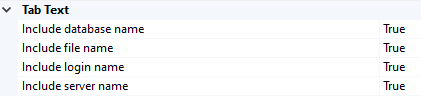
Tab Text
This one is disappointing because there are only 4 settings you can choose, but you cannot reorder them, so most of the text gets cut off. You can only see the full text on hover.
The format is: {FileName} - {Server}.{Database} ({Login ({SPID})})
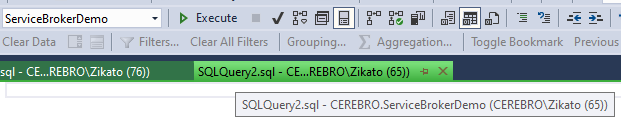
As you can see - most of the time you'd only see the file name and login
File name - I can't remove this because it's useful when it's a saved file (like 00_RunThisFirst.sql) but when it's an ad-hoc query, it's useless
I thought I could at least remove the Login. I almost always use the same login - mine. So cutting this makes perfect sense, right? Well the SPID is tied to the login for some reason. You remove login, you remove SPID. And SPID is useful (blocking, KILL command, tracking the status of index rebuild, etc.)
And Server and Database info is usually cut off anyway.
Query Execution
SQL Server \ General
I don't remember if it's the default, but SET TEXTSIZE: should be the biggest number (it will automatically round to max integer).
Batch separator - Keep it to GO unless you want to prank someone. Yes, GO is NOT a transact SQL statement, but it's a setting of the client (SSMS) to mark the end of the batch (for example creating a Stored Proc must be the only statement in the batch)
I'll skip the Advanced and ANSI settings. I don't like to rely on the SSMS setting which is invisible, I rather declare the ANSI settings in my script if needed. For more info,  Erik Darling (Darling Data)
covers the details in The Art Of The SQL Server Stored Procedure: ANSI/SET Options.
Erik Darling (Darling Data)
covers the details in The Art Of The SQL Server Stored Procedure: ANSI/SET Options.
Query Results \ SQL Server
Results to Grid / Text
Definitely check Retain CR/LF on copy or save - especially useful when copying definitions from sys.sql_modules
Discard results after execution - It's useful if you want to measure the query performance without rendering potentially large output. I've experimented with setting this only for Results to text and then toggling between grid and text results for quick discard. But I don't use it that often.
Maximum Characters Retrieved - set max int for non-XML data and Unlimited for XML data to avoid truncation of large results.
Multiserver Results
This applies if you open a connection to a group of servers (from the Registered Servers window) I leave defaults on, but it's a matter of preference. Just be aware that it exists.
Designers
Don't use them. Get in the habit of writing TSQL scripts. They give you better control and can be put into source control or shared.
SQL Server Object Explorer
Scripting
Again be aware of this. There are a couple of options that are NOT enabled by default (and IMHO should be)
- Data Compression Options
- Extended properties
- Permissions
- Collation
- Partition schemes
- Triggers
And that's it for the Options section.
Hotkeys
Nothing will improve your productivity like knowing hotkeys. I'll skip the standard ones like CopyPaste, etc.
These are my essentials
Query execution
- Ctrl+E - Execute
- Ctrl+R - Results (Toggle between show and hide)
- Ctrl+L - Display Estimated Execution Plan (doesn't run the query but shows the plan immediately)
- Ctrl+M - Include Actual Execution Plan (this is a toggle, so it shows the actual plan on next run)
- Ctrl+D - Results to Grid (default)
- Ctrl+T - Results to Text. Mostly activated by accident when I meant to press Ctrl+R
- F4 - (Not to be confused with Alt+F4). Opens the Properties windows - especially useful when looking at execution plans. Sometimes you have to click on another plan node and back to get the window to refresh.
Query writing
- F1 - Highlight a function or DMV and press this hotkey to open documentation (if available)
- Alt+F1 - Runs
sys.sp_helpwith the highlighted object as the runtime value - Ctrl+Spacebar - brings up the Intellisense if you accidentally close it
- Ctrl+Shift+Spacebar - when inside the parenthesis, it brings up the parameter info window
- Ctrl+Shift+U - Turn selected word to uppercase
- Ctrl+Shift+L - Turn selected word to lowercase
- Alt as a modifier
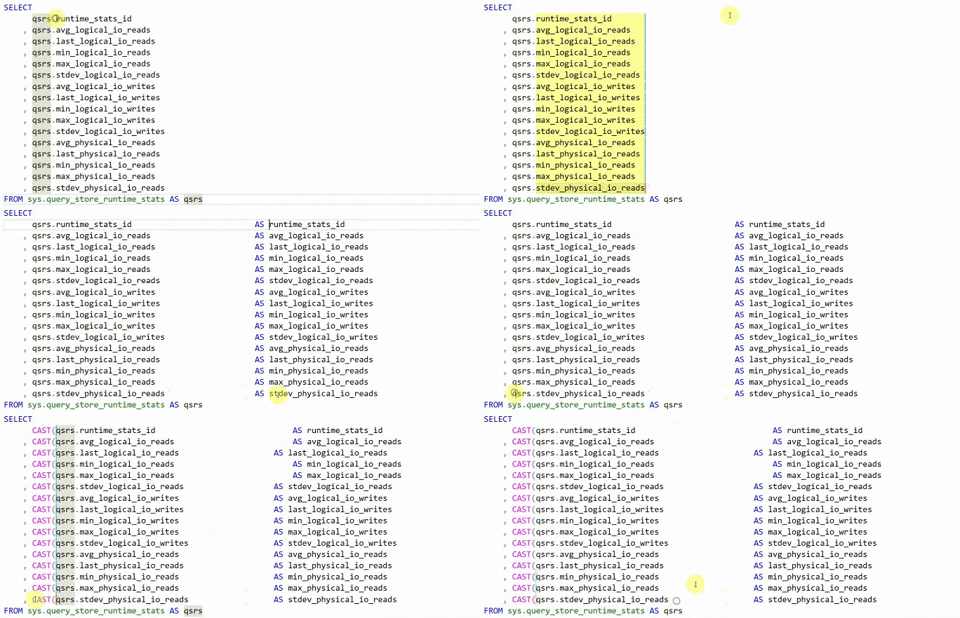
- Alt+Up / Alt+Down - moves the current line up or down. Great for changing column order (when each column has its own line)
- Alt + mouse drag - multi-line edits (not as good as VS Code's multi-cursor, but good enough)

Navigation
- Ctrl+) - If you have caret on a parenthesis or begin/end it will take you to the matching pair (this might be a regional keyboard thing, so check the shortcut in keyboard settings. It's named Edit.GotoBrace)
- Ctrl+G - GoTo line number
- Ctrl+Alt+G - Open Registered Servers
- F8 - Open Object Explorer
- F7 - Open Object Explorer Details - I thought this was neat back when I was starting out, but haven't opened it in years.
They are next to each other, so I execute a query and hide or show Results as necessary. I don't use F5 much, usually on the Shift+F5 variant from SQL Prompt that runs only the current statement.
Custom hotkeys
- Window.QuickLaunch - Ctrl+Q - I was surprised this was not default as is the case with Visual Studio.
- Window.NewVerticalTabGroup - Ctrl+Alt+T - this splits the screen vertically so I can move tabs around. I usually have them for comparison, or one half of the screen is for the project and the other is for ad hoc queries.
- Window.MovetoPreviousTabGroup - Ctrl+Alt+Left
- Window.MovetoNextTabGroup - Ctrl+Alt+Right
- Window.PinTab - Ctrl+Alt+Q - The Q kinda looks like a pin in some fonts
- Window.PreviousTab - Ctrl+Alt+PgUp. This one is actually on by default but the shortcut in SSMS is misleading as it omits the Alt
- Window.NextTab - same as above
Miscellaneous tips
- There was a time when the Cycle Clipboard Ring was useful. But now that Windows clipboard has a history, I always use Win+V
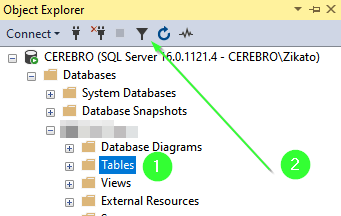
- If you're trying to find a specific item in the Object Explorer use the filter icon on the parent node (e.g. Tables, SQL Agent jobs, etc.) before expanding them.
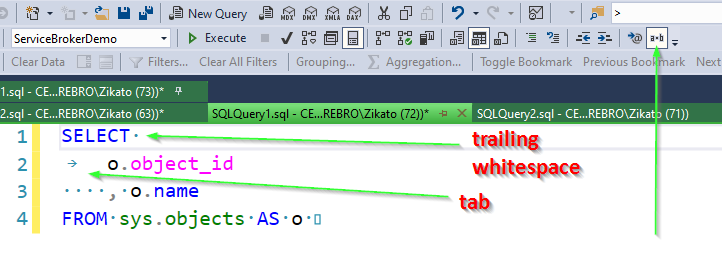
- You can toggle the visibility of whitespace characters. It might be handy to check if no one inserted tabs or left trailing whitespace.
There are probably many more tips that I didn't recall yet, but this blog post is long enough already. Let me know in the comments if there's something I've missed or that you'd like to see in a future post.
Thank you for reading